

Finclair Financial Reporting German GAAP (HGB) financial statements and controlling right in Business Central
Balance sheet, income statement, BWA, trial balance and cash flow statement – with budget vs. actual and prior-year comparison and a built-in check that tells you whether the figures are right. No exports, no side calculations.
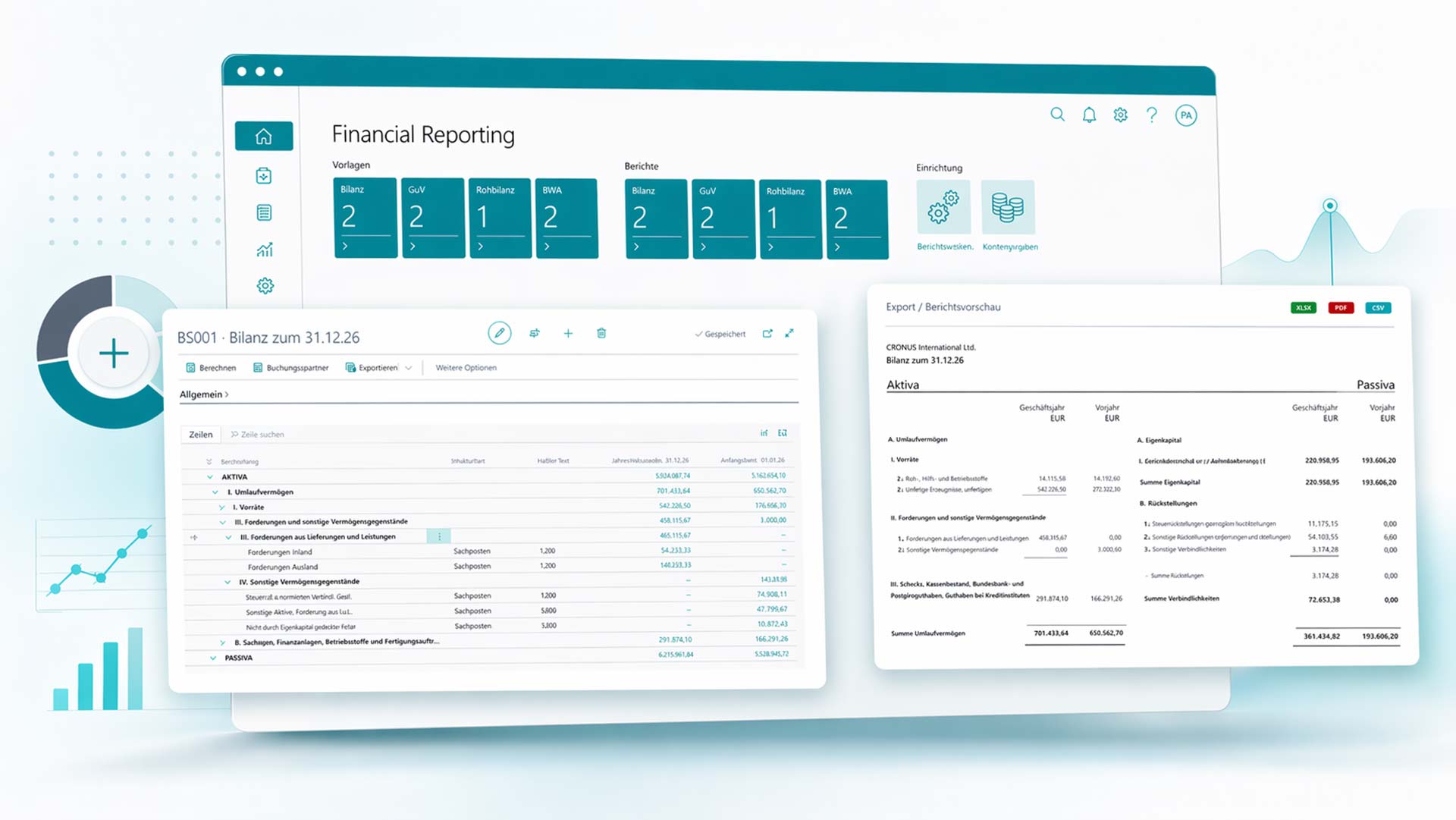
Benefits at a glance
Everything in Business Central
A native extension, no additional software. All reports are built directly from your G/L entries – up to date, traceable and with the same permissions as your accounting.
Steer, don’t just close
Budget vs. actual from your G/L budgets, prior-year comparison and the cash flow statement answer the questions after month-end close: Are we on plan? How do we compare to last year? Where is our cash going?
Figures you can trust
Every report is checked before and after calculation. A traffic light shows at once whether everything is correct – the check log lists every finding, for example a G/L account without a mapping.
Set up in no time
A wizard sets up the app for SKR03 or SKR04. Ready-made templates for all reports; the cash flow statement and the income statement by function of expense with a single click.
Financial statements and controlling in one app
Reports under German GAAP (HGB)
All key financial statements in one app – structured according to German commercial law and ready to use:
- Balance sheet under § 266 HGB, also in the structure of the German E-Bilanz taxonomy
- Income statement by nature of expense and by function of expense (§ 275 HGB), including the disclosures on cost of materials and personnel expenses under § 285 No. 8 HGB
- BWA (German management accounts report)
- Trial balance
- Cash flow statement under GAS 21 / DRS 21 (indirect method)
Cash flow statement under GAS 21 / DRS 21
You set up the cash flow statement with a single action. It shows the cash flows from operating, investing and financing activities through to cash and cash equivalents at the end of the period. Accounts that switch between debit and credit balance and collective accounts are split proportionately, just as in the balance sheet, and customers and vendors can be shown individually. A control line reconciles the result automatically, and every amount can be traced back to the individual G/L entry.

Balance sheet under German GAAP with prior-year comparison

Cash flow statement under GAS 21
Click to enlarge
Budget vs. actual
Select a G/L budget from Business Central on the BWA or income statement. Ready-made column layouts show actual, budget and variance side by side – in amounts and percent, for the period, year to date or split by month, quarter and year. Actual and budget use the same account mapping, so you always compare like with like. Every budget figure can be traced back to the budget entries.
Prior-year comparison
Period and year to date compared with the prior year; in the balance sheet, the balance at period end against the prior-year reporting date – optionally with the movement of the last month or quarter. The difference is shown down to account level.
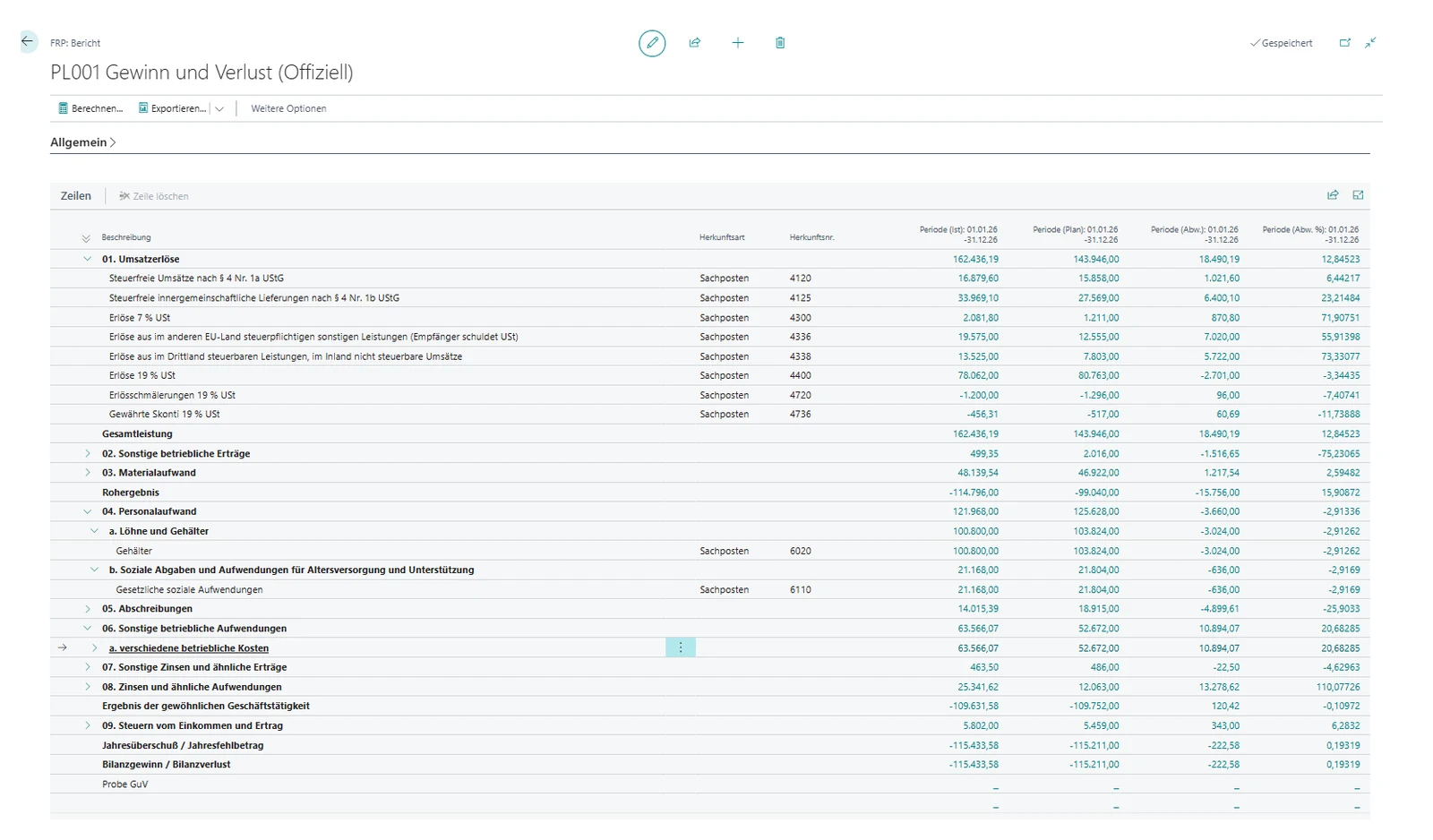
Income statement with budget vs. actual
Click to enlarge
Built-in check: know whether the figures are right
Finclair Financial Reporting checks every report before and after calculation and records the result in a check log. A traffic light shows the status at a glance: OK, warning or error.
- G/L accounts with postings that are not yet mapped to a report line are reported with number and name
- Balance sheet: assets = equity and liabilities; trial balance: sum of all accounts = 0
- Your own check lines in the templates, e.g. a reconciliation of the income statement or the BWA
- Checks of the templates themselves, e.g. for unknown lines or circular references
- A calculation never aborts – findings go into the log, and you decide what to do
Map new G/L accounts in one step
When you create a new G/L account, a wizard maps it to all reports in a few steps – balance sheet, income statement, BWA, trial balance and cash flow statement. It is based on the master chart of accounts for SKR03 or SKR04; if an account is not listed there, a comparable account serves as a template.

Check log with check status
Click to enlarge
Analysis by dimensions
Analyze your reports by dimensions – for example for a cost center, a cost object or a business unit, without side calculations. The dimension filters apply to actual and budget figures and to the drill-down.
Reporting currency
Create all reports in another currency, for example for a foreign parent company. Amounts are translated using the modified closing rate method (§ 308a HGB) – either with the exchange rates from Business Central or with the additional reporting currency of the general ledger. Rounding differences are balanced automatically, so the balance sheet and trial balance reconcile exactly.
Non-calendar fiscal year
If your fiscal year differs from the calendar year, year and quarter columns, the prior-year comparison and year-to-date figures follow the accounting periods in Business Central – including short fiscal years.
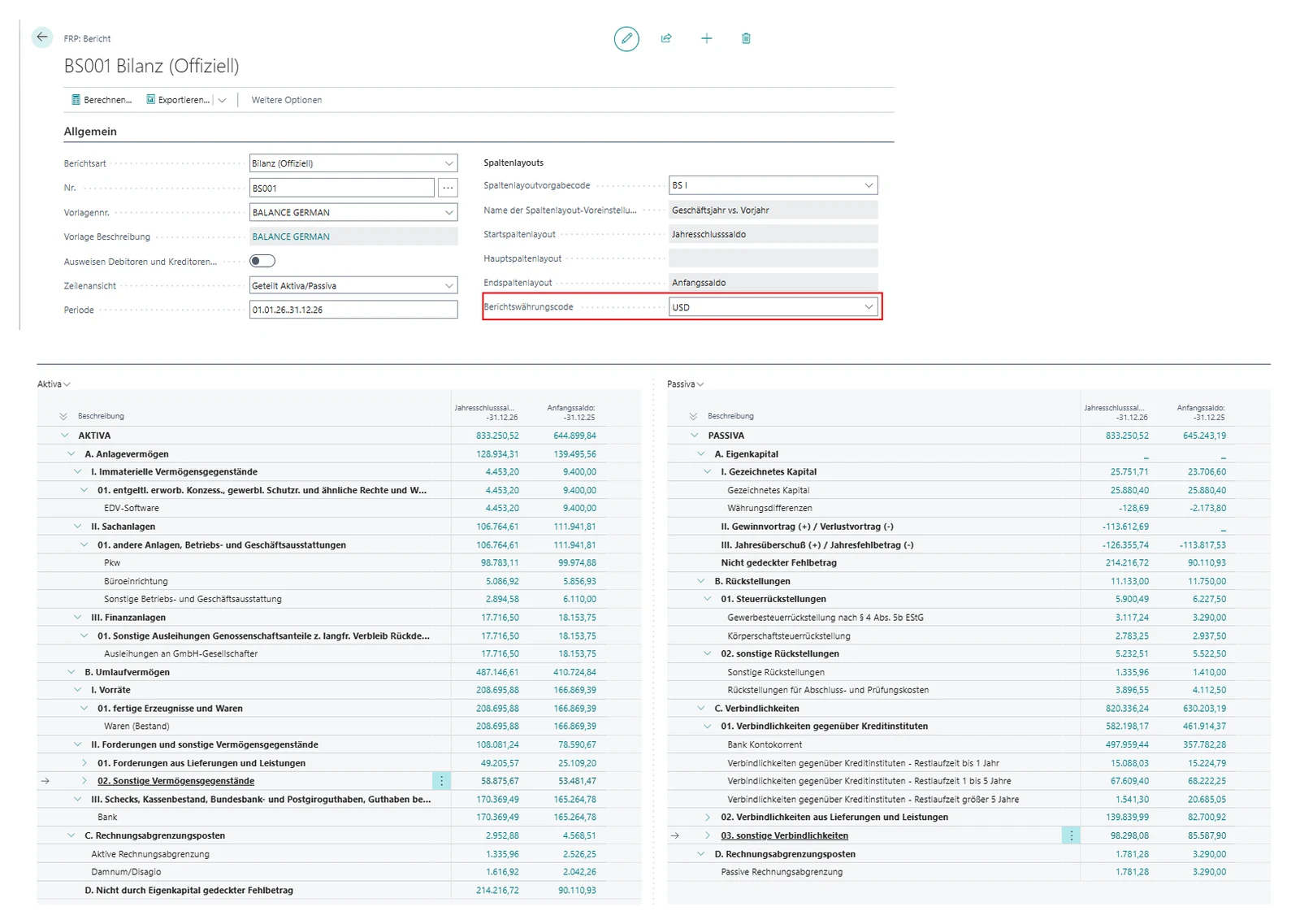
Balance sheet in reporting currency (USD)
Click to enlarge
Excel export and printing
Every report can be printed or exported as a formatted Excel workbook: with a commercial-law header and reporting date, the period in the column headings, with or without account details and with up to 50 columns. Captions appear in the user’s language (German or English).
Drill down to the source
Every amount is traceable: from the report via the data entries to the G/L entry, budget entry or customer and vendor ledger entry.
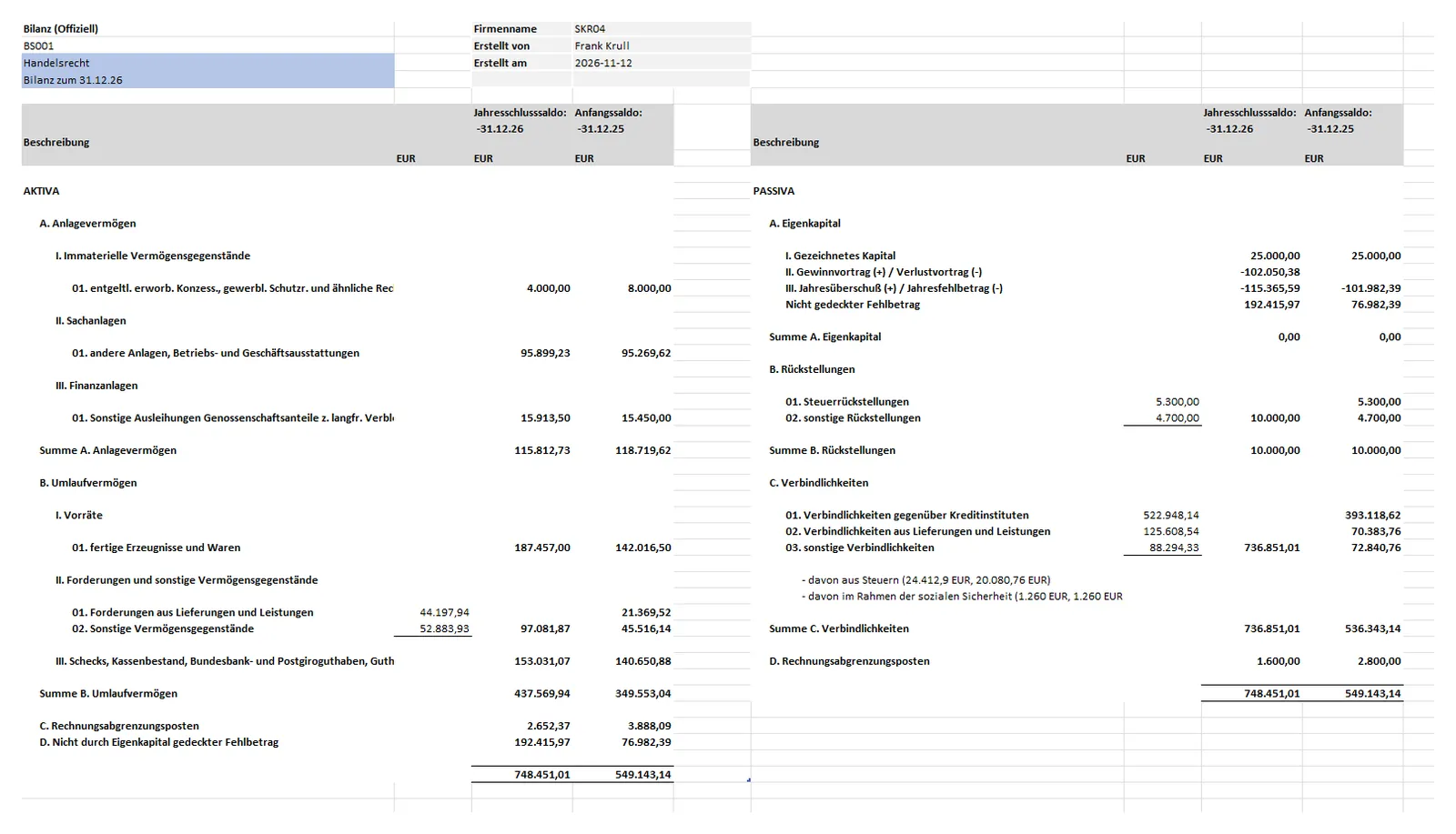
Excel export of the balance sheet
Click to enlarge
Templates and account mapping – maintain once, use everywhere
The reports are based on templates with lines, formulas and account groups. We supply the standard templates and update them with every release. You can add your own lines and adjustments. You maintain the account mapping once; it applies to all reports.
Also included
- “Inventory by Vendor” report: inventory value per vendor at the reporting date, including “received, not invoiced”
- User interface and reports in German and English
- Financial Reporting right in the Role Center: reports, templates and status at a glance
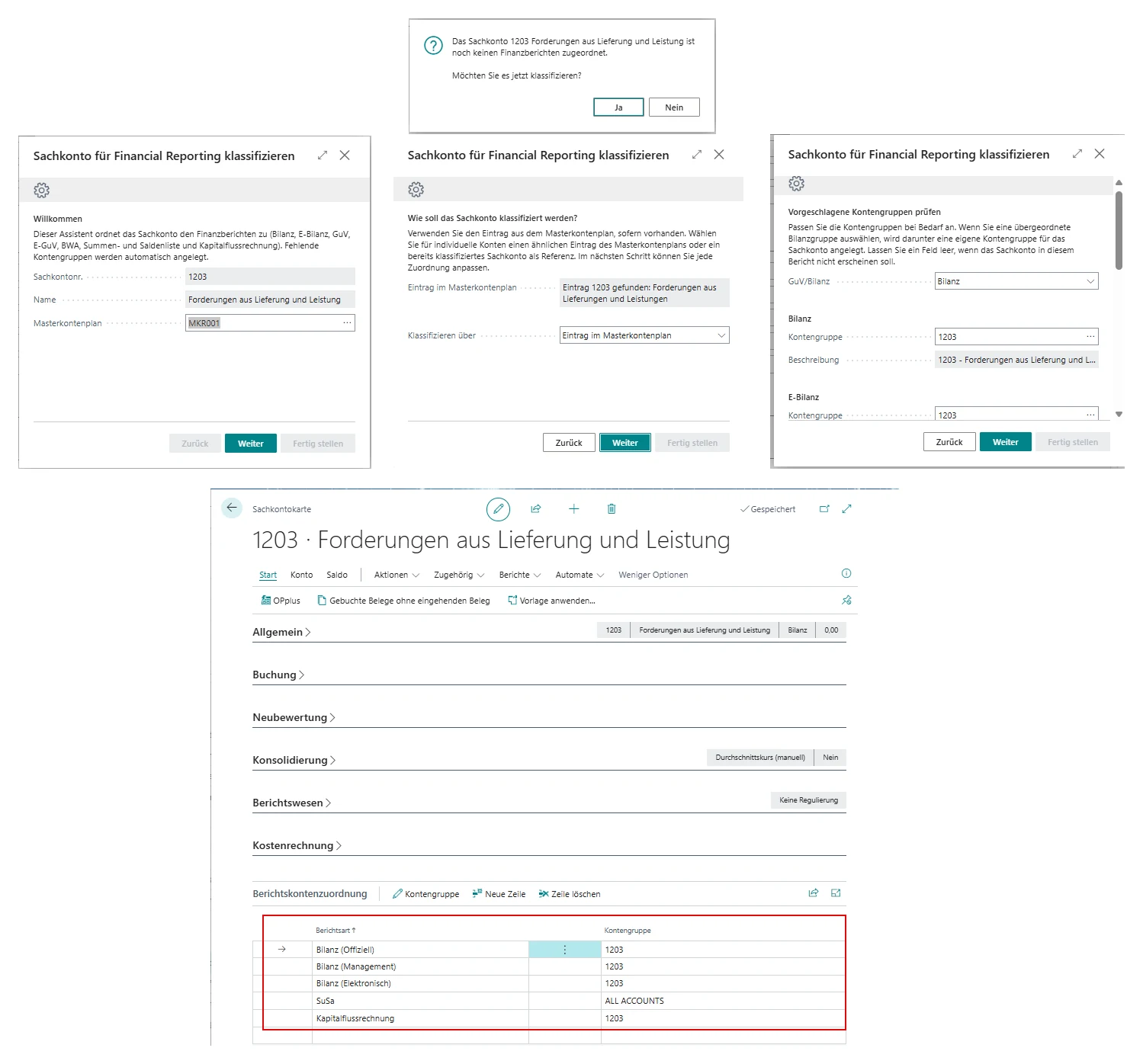
Map a new G/L account to all reports with the wizard
Click to enlarge
New in November 2026
- Budget vs. actual from G/L budgets with variance in amounts and percent
- New column layouts for prior-year comparison, year-to-date figures and the last month or quarter
- Cash flow statement under GAS 21 / DRS 21 – set up with a single action
- Income statement by function of expense with disclosures under § 285 No. 8 HGB
- Check log with traffic light and account classification wizard
- Analysis by dimensions, reporting currency and non-calendar fiscal years
- Excel export with commercial-law header and the “Inventory by Vendor” report
How to get started
Install, set up, analyze –
three steps to your first report.
1. Install
Select the app on Microsoft Marketplace and install it in your Business Central environment.

2. Set up
The wizard takes care of the chart of accounts (SKR03 or SKR04), templates and account mapping. You review the mapping of your G/L accounts – the app highlights any gaps.
3. Analyze
Choose a report, enter the period, calculate. Set up the cash flow statement and the income statement by function of expense with a single action when you need them.
Who is Financial Reporting for?
Tax advisory firms and accounting service providers
With many clients: consistent reports and checks for all companies, tiered pricing per company.
Finance managers and controllers
Budget vs. actual and prior-year comparison, cash flow and cost centers without side calculations in Excel.
Management
Reliable monthly figures straight from the ERP.
Groups of companies
Reports in a reporting currency and for non-calendar fiscal years.
Pricing
All prices are net plus VAT, per company.
Monthly license
The monthly license can be cancelled at any time.
* Price per company / monthly
Annual license
The annual license runs for twelve months and saves about one monthly fee.
* Price per company / annually
Included in the price
- Setup wizard with standard templates for SKR03 and SKR04
- Ongoing updates including new features and updated templates
- Technical support by email and phone
- Online documentation (user guide) and training materials
- Compatibility with current versions of Business Central
For large client portfolios, we are happy to prepare an individual offer.
See Financial Reporting with your own figures
In a short meeting, we show you what the balance sheet, income statement, BWA and cash flow statement with budget vs. actual look like in your Business Central – and how quickly setup is done.
Frequently asked questions
1. Who is Finclair Financial Reporting for?
2. Do I need additional software?
3. How long does setup take?
4. Which reports are included?
5. Can I compare budget and actual?
6. How do I know whether the figures are right?
7. What happens when I create a new G/L account?
8. Can I analyze by cost center?
9. Does the app support foreign currencies and non-calendar fiscal years?
10. Can I customize the reports?
11. What is the contract term?
12. Are there volume discounts?
13. Does the app work on-premises or with older versions?
14. Does Financial Reporting replace tax advice?
Finclair Financial Reporting supports the preparation of financial statements and management reports under German GAAP (HGB). The information on this page and the features of the app do not constitute tax or legal advice. Responsibility for annual financial statements, tax returns and their content remains with the user; please coordinate them with your tax advisor.